Text Editing, Done Right
Official tagline

Build 4200 fixed wrap_lines not understanding newer ruler settings. Update to the current build if an older copy still shows the old wrap behavior.
Build 4192 fixed the find field not expanding with multi-line search queries.
Indexing large trees is the usual cause. Exclude generated folders and avoid opening a drive root. GPU rendering should use less power than before, but a bad GPU driver can still be turned off from the Command Palette.
Open Preferences, Key Bindings and search for the command. An operating-system shortcut may be taking the same keys.
Hot exit writes unsaved buffers when the app closes. If the process was force-killed, open the project file again.
Keep generated output out of the indexed folder. Learn Goto Anything, the Command Palette, Ctrl+D and Tab Multi-Select before adding packages. See the features page before replacing a built-in tool.
Text Editing, Done Right
Official tagline
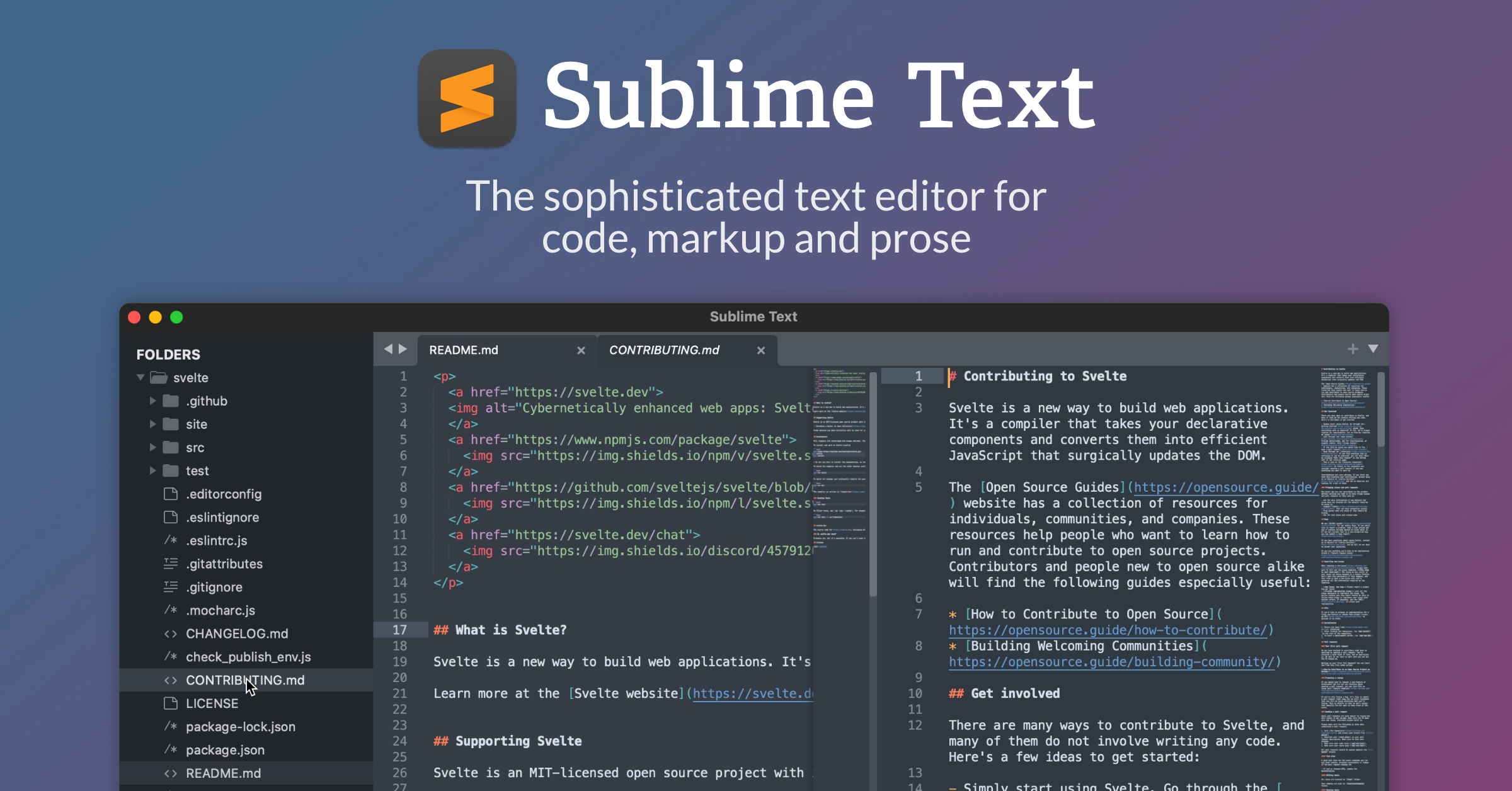
A sophisticated text editor for code, markup and prose.
Product description
Effortlessly split panes and navigate between code with Tab Multi-Select.
Sublime Text 4
Multiple selections rename variables quickly with Ctrl+D.
Editing model
GPU rendering keeps the UI fluid up to 8K resolutions.
What's New
TypeScript, JSX and TSX support ships by default.
What's New
Text Editing, Done Right
Official tagline
A sophisticated text editor for code, markup and prose.
Product description
Effortlessly split panes and navigate between code with Tab Multi-Select.
Sublime Text 4
Multiple selections rename variables quickly with Ctrl+D.
Editing model
GPU rendering keeps the UI fluid up to 8K resolutions.
What's New
TypeScript, JSX and TSX support ships by default.
What's New